Cloning a technical file instead of creating a new one from scratch saves time. By cloning a technical file, pre-filled general information can be transferred and technical changes to the product can be added to make the new, cloned technical file complete.
Feature access
This feature is available to all ProductIP users and is available for all plans.
Before you begin
An existing technical file is needed in order to create a clone.
Video instructions
A short step-by-step guide will follow soon!
Steps
There are two ways to create a clone:
In the technical file overview
- Go to Your technical files and hover over the hamburger menu icon. A menu will pop up.
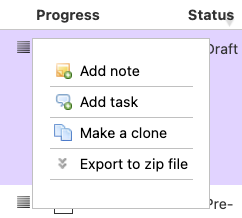
- Click on Make a clone.
In the technical file you want to clone
- Open your technical file.
- Click on Make a clone in the top bar.

The clone menu will appear in both cases. Please fill out and/or update the data for the to be cloned technical file.
Note: if the market release date is changed, 1 credit will be deducted from your account after cloning the technical file if you have an Essential subscription.
3. Click on Create clone.
4. After successfully creating a clone a new page loads. Click on Continue with the cloned file.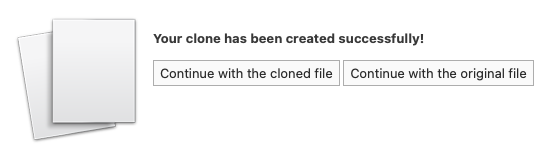 Continue with the cloned technical file as you would any other technical file by updating and/or filling out the necessary data.
Tips and best practices
- A technical file can only be cloned from an existing technical file.
- You have the option to copy document to the new clone. This can save you time if you need most of the same documents. If the product has structural changes we recommend to not copy the documents to avoid mistakes in the clones technical file.
- Cloning a technical file is useful if the product if you are purchasing a new order and the following has changed:
- supplier
- material
- requirement list (due to a new market release date)
- If, for example, only the color differs, it is not necessary to clone the technical file, you can just add the new color and upload additional documents.
Troubleshooting
- The browser page is not refreshing after clicking on Create clone.
Refresh the page or clear your browser cache. You will need to login again after clearing your browser cache.
- I have changed the market release date but I have insufficient credits to continue. (Essential subscription only)
Use the Buy credits option to get sufficient credits in order to clone the existing technical file.
Still having issues? Contact ProductIP via helpdesk@productip.com.
FAQ
- Can I clone multiple technical files at the same time?
No. - Do I need credits if I want to clone a technical file?
Credits are only needed with an Essential subscription when the market release date differs from the original technical file. - My product only changed colour. Should I create a clone?
No. Only if there are changes in supplier, material or requirement list it is needed to create a new technical file and this can be done by creating a new clone.
Related articles
Was this article helpful?
That’s Great!
Thank you for your feedback
Sorry! We couldn't be helpful
Thank you for your feedback
Feedback sent
We appreciate your effort and will try to fix the article