One of the key elements of creating a technical file is selecting the correct product category. This, together with the Market release date and Regions, generates the Requirements li
Feature access
All ProductIP users with permission to create or edit technical files can access this feature. This feature is available for all plans.
Before you begin
Product categories are listed in English, however our multilingual AI-supported tool offers you to search in your own language.
Video instructions
A short step-by-step guide will follow soon!
Steps
1. Search for your product category
We offer 5 different methods to find your applicable product category.
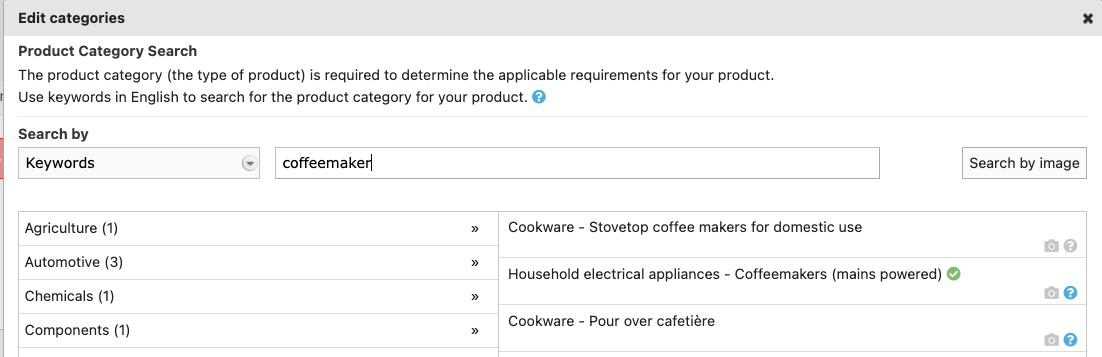
1.1 Use keywords, such as the generic name for the product or related words. If you search for more than 1 keyword, the system will search for each keyword separately.
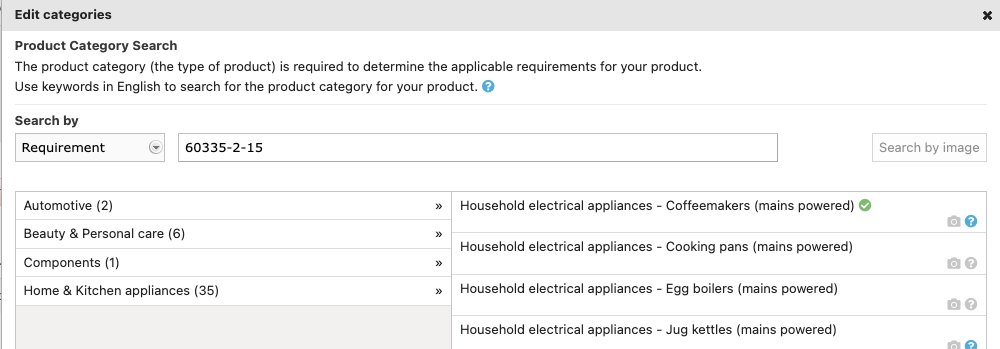
1.2 Use a requirement with the numbers only, do not add EN, IEC or ISO, e.g. 71-2 or 60335-2-15.
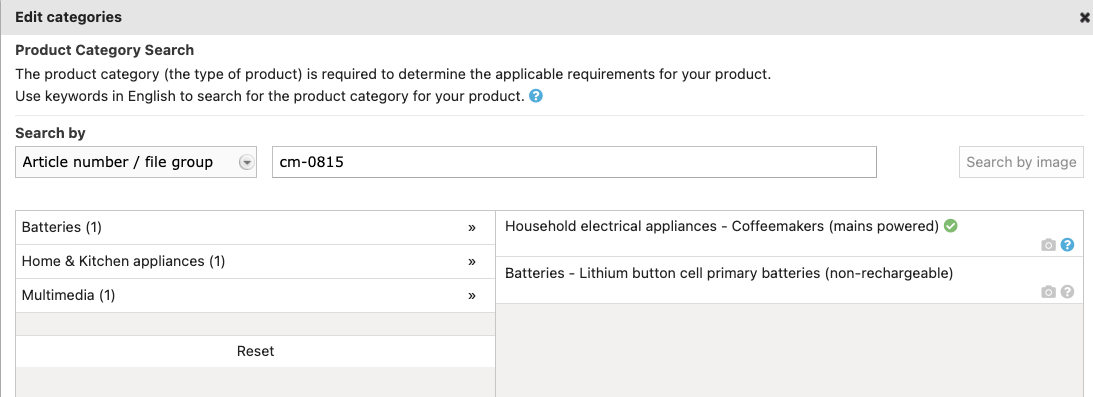
1.3 Use the article number from a previous technical file.
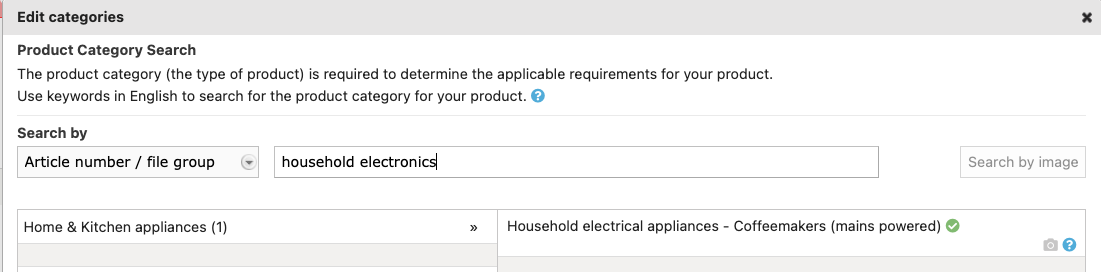
1.4 Use a file group attached to a previous technical file. File groups are used to organise technical files into freely definable groups, such as 'Decoration' or 'Electronics' or other product groups. They can be used to filter the technical file overview and in particular to restrict access and visibility to specific user groups. To find out more see Add file groups
1.5 Use an image to find your product category. This does not always generate the result you want, but can provide you with new ideas for keywords.

2. Select your category
The next step is selecting the product category by clicking on it. A green checkmark is visible and the category is added at the bottom of the screen.
Note: You can remove the selected product category by clicking the trash bin.
3. Complete the Q&A
Click Next to go through category-specific questions (Q&A). Your answers automatically generate the applicable requirements list.
4. Click Agree & Save
Now you have created or revised your technical file with requirement list.
Tips and best practices
- When multiple results appear
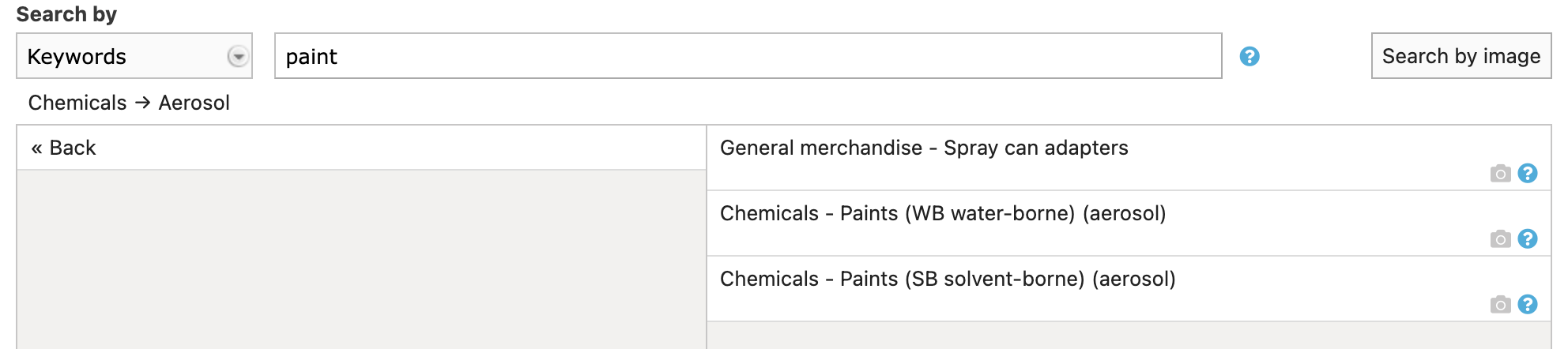
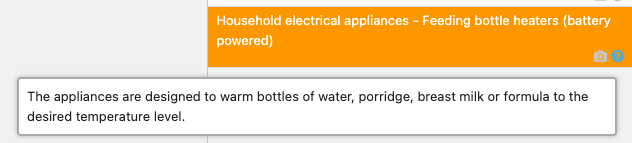
If multiple results appear, refine your search by choosing a subgroup (e.g., Chemicals > Aerosol). Hover over blue question mark for category details. When unsure, cross-check your selection using Google or an existing technical file.
- Clever use of keywords in our AI-supported search tool
Don't use full sentences, but dedicated words related to your product. This avoids too many options. More words means more product categories in your list.
- Use plural keywords
Our product categories are written in plural, for example "Pools" instead of "Pool". Using plural keyword will provide a faster match.
FAQ
- How to navigate when there are multiple options?
If your search method prompts multiple options as for example below: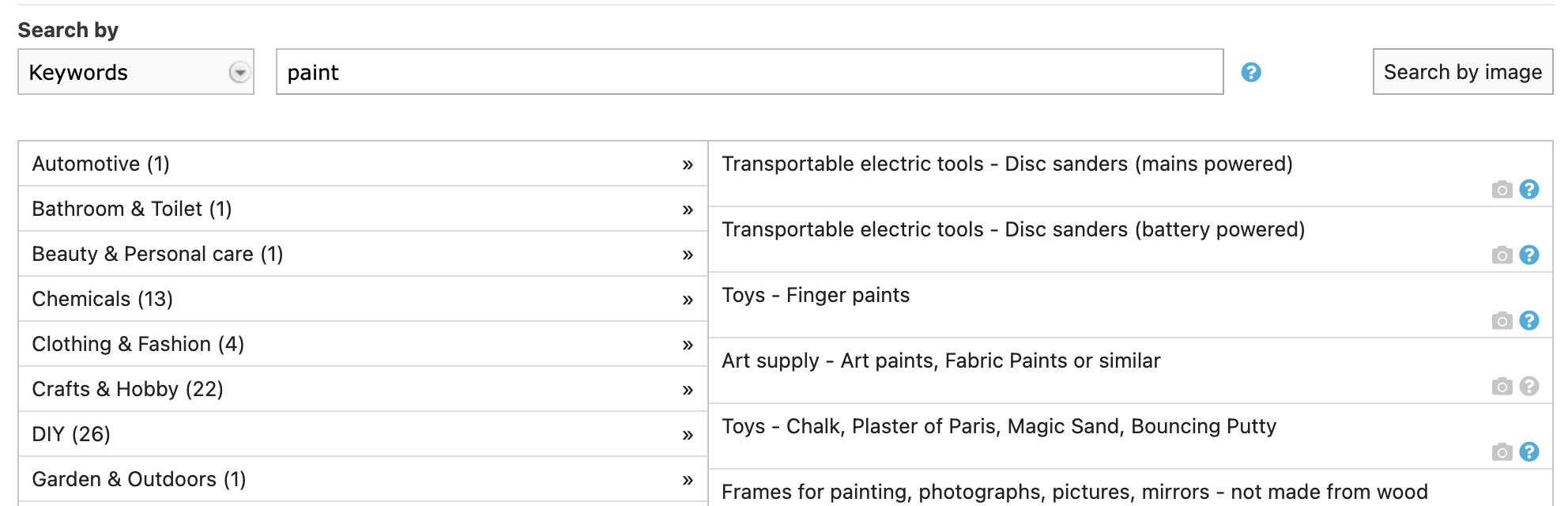
In this case you have the option to select a sub group. In the example below the subgroup Chemicals > Aerosol was selected. This limits the number of product category options shown.
- What if I have doubts about the product category?
- Copy the chosen product category and paste it into a search machine, e.g. google. Do the products found match yours?
- Look in an existing technical file of the same type of product to see which product category was chosen.
- Another helpful tip is to hover your mouse over the blue question mark. It will provide more information on the related product category.
- What if I still can’t find the right product category?
In that case, choose the category named PROVISIONAL.


After you have created the technical file, upload all available product information and communicate an extended product description and any urls to similar products to our regulatory team, via the steps indicated in the technical file.
Based on the information you provide, our regulatory team will determine the product category for your product. For product categories that are not yet in our database, we will do our utmost to find all relevant legislation as soon as possible.
Note: Please be aware that this option takes time (up to 10 working days) and so we urge you to try searching yourself first with the help of the above suggestions.
Note: If you intend to send a Technical File Request and can’t find the right product category, please do not select “PROVISIONAL”. Instead, leave the product category unselected by clicking Back and then clicking Create Pre-draft file in the bottom right corner on New Technical File Wizard (2/7). Once the pre-draft has been created, send the technical file request to your supplier and ask them to submit a separate PROVISIONAL request and provide the necessary information.
Was this article helpful?
That’s Great!
Thank you for your feedback
Sorry! We couldn't be helpful
Thank you for your feedback
Feedback sent
We appreciate your effort and will try to fix the article