Two-factor authentication (2FA) adds an extra layer of security to your ProductIP account. Once enabled, users must verify their identity using a second step when logging in. This helps protect your company data from unauthorised access and reduces the risk of compromised accounts.
Feature access
Only users with the Administrator role can enable or disable two-factor authentication.
This feature is available for Professional and Enterprise customers.
If you want to enable dashboards for your account, contact sales@productip.com.
Before you begin
- Enabling 2FA applies to all users in your company account.
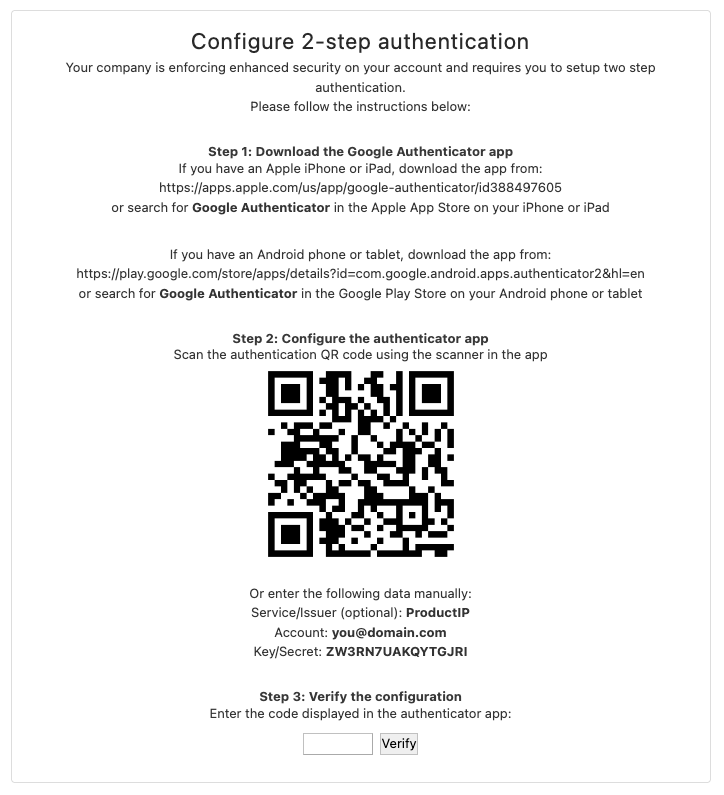
- Users will be required to set up 2FA the next time they log in.
- Make sure users have access to their authentication method (for example, a mobile device).
- Inform users in advance to avoid confusion or login issues.
Video instructions
A short step-by-step guide will follow soon!
Steps
Enabling two-factor authentication:
- Go to Settings in the top-right corner of your screen.
- Select Company Account.
- Open the Users tab.
- Click Enable two factor authentication.
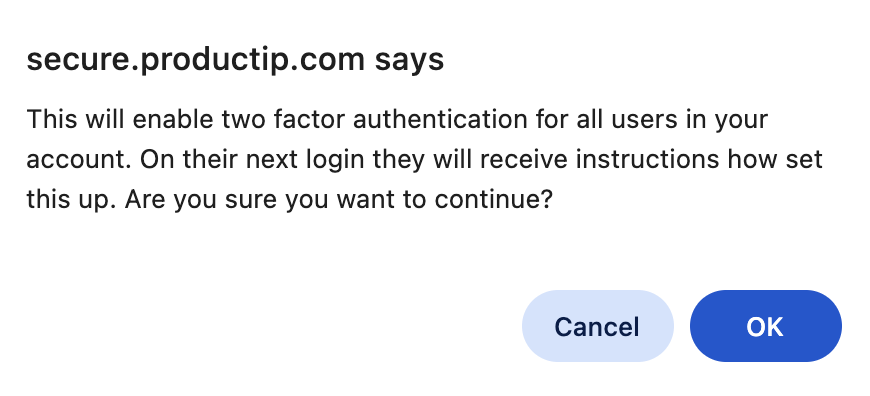
- Review the confirmation message and click OK.
Notes:
- All users in the account receive a notification.
- Users are prompted to set up 2FA at their next login.
Disabling two-factor authentication:
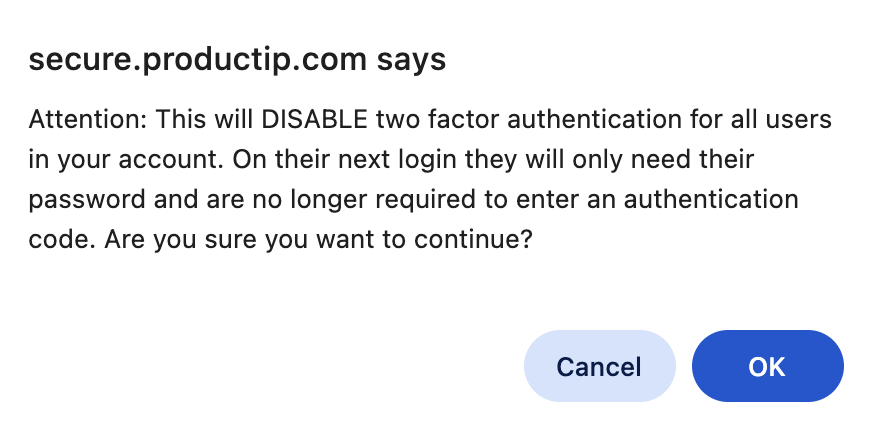
- In the Users tab, click Disable two factor authentication.
- Confirm the message by clicking OK.
- 2FA is removed for all users in the company account.
Tips and best practices
- Inform users before enabling 2FA so they know what to expect at their next login.
- Enable 2FA during working hours in case users need assistance.
- Combine 2FA with an IP whitelist for trusted office networks if appropriate. See Add IP addresses for two-factor authentication (2FA) for details.
- Review security settings regularly to ensure they still match your organisation’s needs.
Troubleshooting
- Users cannot log in after 2FA is enabled.
Check whether the user has completed the 2FA setup during login. If not, ask them to log in again and follow the setup steps. - A user did not receive instructions.
Ask the user to start a new login session. The 2FA setup prompt appears automatically after 2FA is enabled.
Still having issues? Contact ProductIP via helpdesk@productip.com.
FAQ
- Can users disable 2FA themselves?
No. Only admins can enable or disable two-factor authentication.
- Does enabling 2FA affect existing sessions?
No. Users are prompted to set up 2FA the next time they log in.
Was this article helpful?
That’s Great!
Thank you for your feedback
Sorry! We couldn't be helpful
Thank you for your feedback
Feedback sent
We appreciate your effort and will try to fix the article