Activate a pre-draft technical file to continue working on your technical documentation. After activation, the file becomes a draft technical file. You can then send document requests, upload compliance documents and link documents to requirements.
Please note:
- Activating a pre-draft technical file uses credits from your ProductIP balance.
- Do not activate a pre-draft technical file if you only want to send a file request.
Feature Access
Users with permission to create and edit technical files can activate pre-draft technical files.
This feature is available for all plans.
Before You Begin
Ensure the following before activating a pre-draft technical file:
You have sufficient credits.
Pre-drafts for similar products have been merged into one pre-draft technical file: see Merge pre-drafts into a technical file.
Existing pre-drafts have been updated manually or using the import function: see Import data via Excel.
Video Instructions
A short step-by-step guide will follow soon!
Steps
You have two ways to activate a pre-draft technical file.
I. Activate a technical file individually:
- Go to the technical file overview.
- Click Activate under the Service column on the right side of the pre-draft technical file you wish to activate.
OR
- Open the pre-draft technical file you wish to activate.
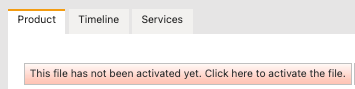
- Click the red banner at the top under the Product tab.
II. Activate pre-draft technical files in batch:
- Go to the technical file overview.
- Select the checkboxes next to the pre-draft technical files you wish to activate.
- Select Activate pre-draft files from the action menu.
- Click Execute.
 Both Option I and Option II open an activation pop-up, as shown below:
I. If no existing technical files are found for the same product article in the pre-draft:
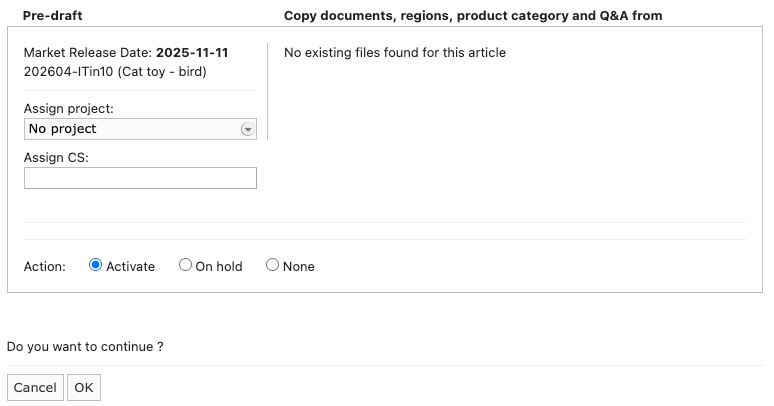
To activate the pre-draft
Select Activate in the Action menu.
Click OK to complete the activation process
II. If existing technical files are found for the same product article in the pre-draft:
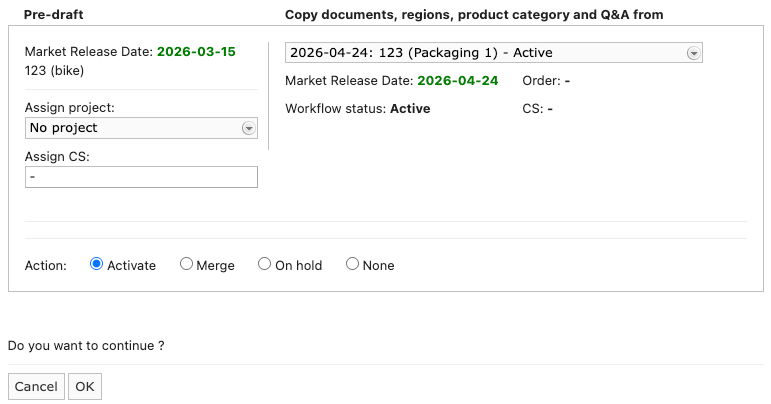
- Click the drop-down arrow
- Select one of the existing technical files
- Select Activate in the Action menu.
- Click OK to complete the activation process
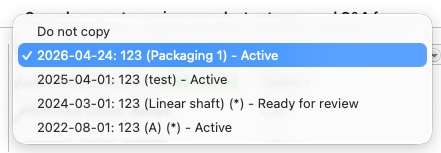
- When activating multiple pre-draft files with the same existing file selected, the pre-draft files will first be merged into a single pre-draft.
- If the selected technical file has a sourcing tag, the pre-draft file will be merged into the selected technical file and all tags will be removed.
- After activation, the activated technical file will copy metadata and documents from the selected technical file.
You can find the activated draft technical file in the technical file overview.
Tips and Best Practices
Individual Activation: Use this method if you need to focus on specific files or activate files one at a time.
Batch Activation: Ideal when you have multiple pre-drafts to activate, as it saves time and increases efficiency.
Verify pre-drafts: Before activating, double-check that the pre-drafts have been updated and merged correctly.
Troubleshooting
- Activation fails?
- Check credit balance: Ensure the credits are sufficient before activation.
- Permissions: Make sure your user role has the necessary permissions for activating technical files.
- Refresh: If the activation doesn’t take effect, try refreshing your page.
Still having issues? Contact your admin or ProductIP via helpdesk@productip.com.
FAQ
- Can I activate multiple pre-drafts at once?
Yes, you can activate multiple pre-drafts in batch by selecting them from the technical file overview and choosing the "Activate pre-draft files" action.
- What happens after I activate a pre-draft technical file?
Once activated, the pre-draft technical file becomes a draft technical file, ready for sending a document request, uploading documents and linking to the relevant requirements, allowing you to continue completing the technical file.
- What shall I do if I activated a pre-draft technical file by mistake?
Activation cannot be undone.
Related Articles
Was this article helpful?
That’s Great!
Thank you for your feedback
Sorry! We couldn't be helpful
Thank you for your feedback
Feedback sent
We appreciate your effort and will try to fix the article