You can change the product category of a technical file to ensure the correct legislation and requirements apply. If your technical file is still in pre-draft, you can update the category without any cost. Once the technical file reaches draft status, changing the category will restart the technical file wizard and may use credits, depending on your plan.
Feature access
This feature is available to all ProductIP users. Essential and Advanced plans: changing the product category after draft status costs one (1) credit. Other plans: different rates may apply.
Before you begin
- Check the status of your technical file (pre-draft or draft).
- Make sure you have enough credits if your technical file is in draft or beyond.
- Know the correct product category for your product.
Video instructions
A short step-by-step guide will follow soon!
Steps (Essential and Advanced plans)
Follow these steps to change the product category:
- Open the technical file of which the product category needs to change
- Click on the Edit icon (paper and pencil) next to Product categories
 Note: A new screen will open after clicking the edit icon
 - Click on the Delete button below 'Selected Product Category' to remove the previously selected product category.
- Search for the new Product category, refer to Select a product category for search methods.
- Select the new Product Category
- Click Next to start the Technical file wizard
- Read and answer all questions to complete the Technical file wizard
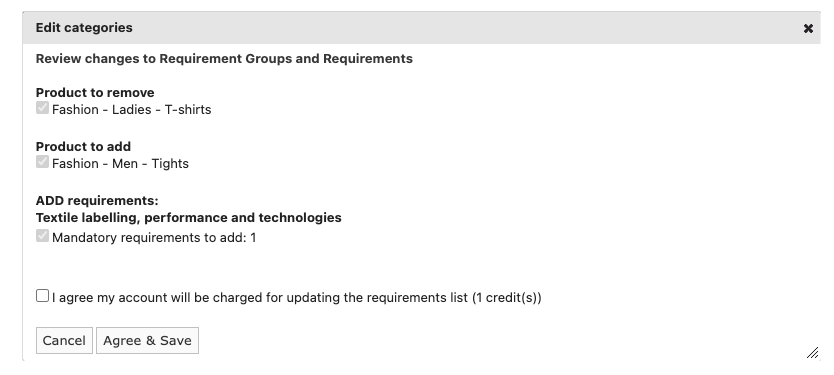
- Click on Agree & Save to complete the change
Note: by agreeing and clicking on Agree & Save your account will be charged 1 credit to implement te product category change.
Example of a product category change (click to enlarge)
Tips and best practices
- Confirm the correct category before making changes to avoid rework.
- Changing the category updates the requirements list automatically.
- Use pre-draft status to make changes without using credits.
- Ensure you have credits available before starting the update (Essential).
Troubleshooting
- A red box appears with "This field is required".
Please tick the box as agreeing to spending 1 credit is mandatory in order to change the product category after the status of the technical file has changed to 'draft'.
FAQ
- Is it free to change the product category?
Yes, providing the technical file is still in pre-draft. - Will I be charged after draft status?
Yes, Essential and Advanced plan users are charged one credit per change.
- I cannot find the correct product category. What should I do?
Search for similar products online to identify the right category.
- What if I still can’t find the right product category?
In that case, choose the category named PROVISIONAL.


After you have created the technical file, upload all available product information and communicate an extended product description and any urls to similar products to our regulatory team, via the steps indicated in the technical file.
Based on the information you provide, our regulatory team will determine the product category for your product. For product categories that are not yet in our database, we will do our utmost to find all relevant legislation as soon as possible.
Note: Please be aware that this option takes time (up to 10 working days) and so we urge you to try searching yourself first with the help of the above suggestions.
Note: If you intend to send a Technical File Request and can’t find the right product category, please do not select “PROVISIONAL”. Instead, leave the product category unselected by clicking Back and then clicking Create Pre-draft file in the bottom right corner on New Technical File Wizard (2/7). Once the pre-draft has been created, send the technical file request to your supplier and ask them to submit a separate PROVISIONAL request and provide the necessary information.
Still having issues? Contact ProductIP via helpdesk@productip.com.
Related articles
Was this article helpful?
That’s Great!
Thank you for your feedback
Sorry! We couldn't be helpful
Thank you for your feedback
Feedback sent
We appreciate your effort and will try to fix the article