Monitor progress with your team, ensure document completion and manage supplier data efficiently in the Technical files overview. Use our batch tool to update multiple technical files in one go.
Feature access
Available for Advanced, Professional and Enterprise plan.
Before you begin
Your view might be limited due to set user rights and/or your subscription plan.
Video instructions
A short step-by-step guide will follow soon!
Steps
1. Log in to the ProductIP platform. You will be automatically directed to the Technical files tab.
2. Navigate to the bottom of the screen for the Choose action feature.
3. Select the technical files for which you want to perform the following actions.
4. Select an action from the Choose action dropdown list. These actions are also available in a single technical file. Based on your subscription plan some actions might not be available.
- Activate pre-draft files: selection will be set to draft.
- Add Metadata: copy Product categories, regions, Q&A, Customers and/or requirements to selected technical files. You get the option to select the source technical file with the information you want to add from.
- Add comment: Adds a comment to an open document request. Select the box Close tasks to close the request.
- Add from clipboard: Copied documents on your clipboard can be added to multiple technical files.
- Add note: Adds a (sticky) note to the timeline of selected technical files.
- Add requirements: Add one or more requirements to selected technical files manually. These requirements will be marked with an M icon in the requirement list of the technical files.
- Add task: Add a task to selected technical files.
- Close technical file: You can only close technical files in bulk that have the status final check. In the technical file itself you can close the draft technical file, skipping the Final check step.
- Delete pre-draft files: Delete pre-draft files that will not be set to draft to clean up your overview.
- Final check: Set the technical file to final check if work on the technical file is done. An appointed colleague can perform a final check of the file and afterward the technical file can be closed.
- Log activity: Log a phone call or email outside the platform with the technical files.
- Manage tags: Add or remove company specific tags.
- Merge files: Technical files can be merged when the products share the same supplier, material, documents, and requirements. Be aware of which technical file you select as main file, because information of other technical files will be removed. Documents will be copied which may result in double documents in the merged technical file.
- Request documents: Send out a document request to the supplier of the selected technical files.
- Request technical file: Send out a technical file request to the supplier of the selected technical files. Only possible for pre-draft files.
- Reset file to draft: Technical files that have been set to Final Check or Closed can be set back to Draft. This way work can resume on these technical files.
- Set contacts: Set a primary and/or secondary contact. This contact is the first responder for issues regarding these technical files.
- Set deadline: Set the date on which the selected technical files need to be completed. This deadline is not visible for suppliers who receive a document request.
- Set division: If divisions are added in your company account, they can be added to multiple technical files here.
- Set end of life date: Set the date on which the product is no longer in the market.
- Set file group: If file groups are added in your company account, they can be added to multiple technical files here.
- Set merchandiser: You can add the name of a colleague, for example the buyer of this this product(group).
- Set project: If projects are added by your company account, they can be added to multiple technical files here.
- Set risk level: If risk levels are added by your company account, they can be added to multiple technical files here.
- Set supplier code: If you have technical files without or with the wrong supplier code, you can set the correct code here in one go. Afterwards you can restore the supplier details in the address book by clicking the Wrench icon > Address book > Update technical file supplier info button.
- Set workflow status: Inform your team about the up-to-date status of the technical files. Update the workflow status, assign and/or set a deadline for multiple technical files.
- Share files: Share your technical files with a customer or authority.
- Update supplier contact: Update the supplier email address. This is the address automatically selected when sending out a Verifeyer form or document request.
5. Click Execute.
Based on the action selected a window will pop up to verify the selection and provide needed information.
Tips and best practices
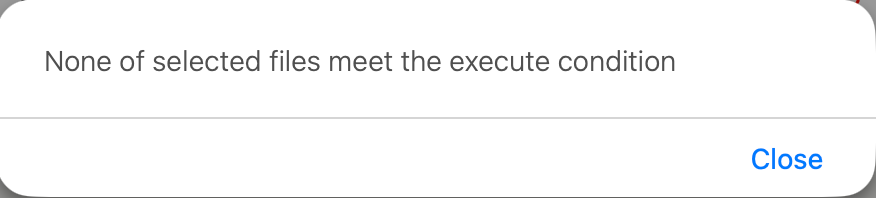
- Some bulk actions can only be performed when the supplier for the selected technical files is the same. For example you cannot add a task or document request to technical files from different suppliers, because the functionality creates one message. This window will pop-up:
- Use bulk actions to avoid needing to re-open closed technical files.
- Use the action "Add comment" and select "Close tasks" to close multiple open tasks or document requests.
- Customise tabs and columns to match your workflow needs. For example, add the Last comment in Select columns to the technical files overview before exporting the technical files.
- While hovering your mouse over a technical file, the platform changes its background colour temporarily to purple. The colour is removed once you move your mouse away from the technical file.
- The last technical file you opened will have a light blue background.
Troubleshooting
- Cannot see all the bulk actions in the Choose action menu?
Your subscription does not include certain features or your user permission limits access to specific actions.
Get into contact with your Admin about your users rights, if it is not related to user rights, get into contact with our sales to see if you need an upgrade in subscription. You can find your Admin and subscription plan by hovering over the Switch accounts icon. 
- Cannot send a document request or add task to all selected technical files?
Some bulk actions create a single message and therefore requirement all selected technical files to have the same supplier. Filter or group your technical files by supplier before performing these actions.
Still having issues? Contact ProductIP at helpdesk@productip.com.
FAQ
- What is the difference between Add Note and Add Comment?
Add Note creates an internal note in the technical file timeline.
Add Comment adds a comment to an open document request.
Related articles
Was this article helpful?
That’s Great!
Thank you for your feedback
Sorry! We couldn't be helpful
Thank you for your feedback
Feedback sent
We appreciate your effort and will try to fix the article