Open a ProductIP Verifeyer form to collect structured compliance data for assessments and audits. The Smart Form guides users through relevant questions and helps collect clear information from suppliers, manufacturers or internal users. After finalisation, the result is available as a PDF document in the relevant technical file.
Feature access
Most Verifeyer forms are available for all users and all plans.
PPWR and EUDR Verifeyer forms are available for Professional / Enterprise customers.
Contact sales@productip.com to gain access to the additional features.
Before you begin
- You must have access to a ProductIP account and an active technical file or document request.
- Ensure you know which product and requirement the Verifeyer form relates to.
Video instructions
Steps
You have three options to open a Verifeyer form.
Option 1: Open a Verifeyer form from email
1. Open the email of Verifeyer form request sent by your customer or your colleague.
2. Click the green button Open form request in the email. In your web browser a window opens with the draft shared by Verifeyer.
3. Click Open draft to access the Verifeyer form.
Option 2: Open a Verifeyer form via Document Request
- Log in to your ProductIP account.
- Open the relevant document request under the Requests tab > Product document requests.
- Hover over the blue Information icon on the left side in the Document column or the blue Resources icon on the right in the Resources column to see the available resources related to the requested document.
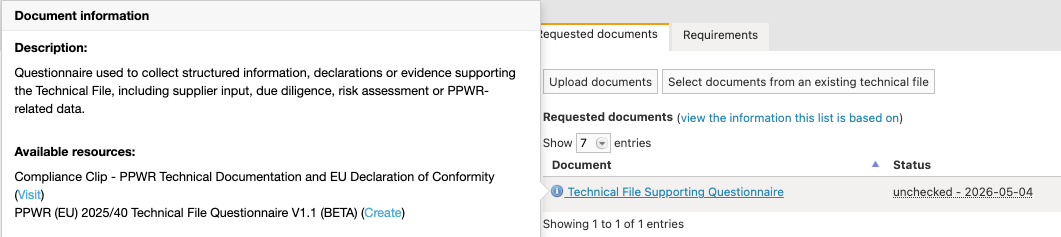
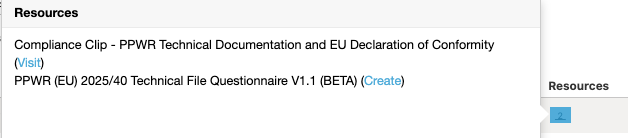
- Click Create to access the Verifeyer form. In your web browser a window opens with the draft shared by Verifeyer.
- Click Open draft to access the Verifeyer form.
Option 3: Open a Verifeyer form in a Technical file
- Open your technical file in ProductIP.
- Go to the Requirements tab.
- Scroll through the list of requirements.
- Find and click the Verifeyer form button related to the requirement (e.g. PPWR (EU) 2025/40).

Select the checkbox "I want to open the form myself".
Click Create form.
Tips and best practices
- Always verify your email and company domain before accepting requests.
- Make sure you know which product and requirement the Verifeyer form relates to. This avoids filling in incorrect or irrelevant data.
- Once finalised, the form is automatically stored under the Documents tab of the relevant technical file. You can recognise it quickly by the blue eye icon on the left side of the documents.

Troubleshooting
- Verifeyer not visible?
Check whether you are in the correct technical file or if the requirement contains a Verifeyer form.
- Request not visible?
It means that the email for "Document Request" or "Technical File Request" has not been sent directly to your email address. Take one of the following actions:
- Ask your customer to send the request invitation directly to your email address, or
- Ask the account admin to invite the colleague who has received the request to register as a new user on ProductIP, so that all users can access the requests in the same account. This can only be done by the account admin. Information can be found in: Invite account users
- Accidentally declined a form request
Contact the sender to resend the request.
Still having issues? Contact ProductIP via helpdesk@productip.com.
FAQ
- Is the Verifeyer form mandatory?
Not always, but you have to provide compliance evidence in another way. Contact your customer about this.
- Who can fill in a Verifeyer form?
The form can be completed by the invited person. Depending on the way the form was shared, this can be an internal user, a supplier or another person with access to the request. - Can I use the form on mobile?
Yes, forms can be completed via browser or the VERIFEYER App. - What happens after submission?
The completed form is automatically uploaded to the relevant technical file. - Are all forms always up to date?
Yes, ProductIP maintains the available forms and provides the current version in the platform. - I received a document request with a Verifeyer form, can I let my supplier fill out the form?
No. It is not possible to send the Verifeyer form to your supplier from a document request. You could ask your customer to send the Verifeyer form to you by email separately. Then you can forward the email to your supplier. As soon as they complete the form the outcome will be uploaded automatically to the platform. You and your customer can access the completed form from there. - I received a document request with a Verifeyer form, can I let my colleague fill out the form?
Your colleague can have access to the form when they have a user account in our platform in the same company account. If they don't have access yet, ask the account admin to invite the colleague as a new user on ProductIP. This can only be done by the admin. Information can be found in: Invite account users
.
Related articles
Was this article helpful?
That’s Great!
Thank you for your feedback
Sorry! We couldn't be helpful
Thank you for your feedback
Feedback sent
We appreciate your effort and will try to fix the article