When uploading documents to your technical files you may encounter that certain documents need to be uploaded in multiple technical files. Our copy/paste function prevents you uploading the same document from your computer over and over. You can even upload a document at once to multiple technical files.
Feature access
Available to all ProductIP customers.
Before you begin
Create the technical files for your products.
If you are not familiar with uploading documents, see Upload your documents for more information.
Video instructions
A short step-by-step guide will follow soon!
Steps
- Open your technical file and go to the Documents tab.
- Upload your document(s).
- Select the document and click Copy from clipboard at the bottom left of your screen.
- Go to your Technical file overview and select the technical files which you want to add this document to.
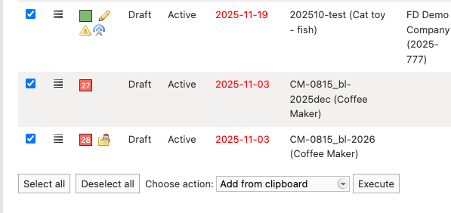
- At the bottom of your screen you choose the action Add from clipboard and click Execute.
- A window pops up, select the document you want to add and click Copy to file.
Now the document is added to the Documents tab in these selected technical files.
Tips and best practices
You can also paste copied documents directly in the technical file. Go to the Document tab and click Paste from clipboard.
Use Synchronise to update the meta data and linkage of your documents at once. See Synchronise documents that are present in multiple technical files for more information.
If you paste the wrong document or paste it in the incorrect technical file the document needs to be removed per technical file. Be careful when selecting and always double check.
Use specific and unique document names. Your colleagues and you will recognise the document by the specific and unique document name.
Troubleshooting
The document does not appear in the selected technical file
Check if a filter is active in the Documents tab.
Refresh your page
Repeat the process and make sure you click the confirmation buttons.
The wrong document was pasted into a technical file
Go to the relevant technical file.
Open the Documents tab.
Remove the document manually.
Repeat the copy/paste process with the correct document.
Still having issues? Contact ProductIP via helpdesk@productip.com.
FAQ
Can I copy multiple documents at once?
Yes. You can select multiple documents before clicking Copy from clipboard and add them to multiple technical files in one action.
What happens if I delete a document from one technical file?
It is removed only from that specific technical file. If the document exists in other technical files, it will remain there.
Is there a limit to how many technical files I can paste into at once?
You can select multiple technical files at the same time. If you experience performance issues when selecting a large number, try adding documents in smaller batches.
Related articles
Upload your documents
Use meta data to link a document to the correct requirement
Synchronise documents that are present in multiple technical files
Was this article helpful?
That’s Great!
Thank you for your feedback
Sorry! We couldn't be helpful
Thank you for your feedback
Feedback sent
We appreciate your effort and will try to fix the article