Uploading documents in ProductIP allows you to build and maintain complete Technical Files that demonstrate your product’s compliance. You can collect, manage, and share these documents efficiently within your team or with business partners.
Feature access
All ProductIP users can upload documents to Technical Files they have access to.
The ability to redact, edit metadata, and share files depends on your access rights and company permissions.
This feature is available for all plans.
Before you begin
- Make sure your product’s Technical File is already created.
- Collect all supporting documents, such as test reports, declarations, and certificates.
- Confirm that your files are in accepted formats (pdf, jpeg, jpg or png).
- Prepare to redact or hide sensitive information before sharing files with external partners.
Video instructions
Prefer to watch instead? We've created a short walkthrough video.
- Watch English video: How to upload documents in ProductIP
- Watch Chinese video: How to upload documents in ProductIP
- Watch German video: Uploading documents in ProductIP
Steps
To upload documents
- Open your Technical File in ProductIP.
- Navigate to the Documents tab.
- Click Upload documents.
- Follow the upload instructions on-screen:
- Select the files from your computer.
- Add a description or internal note if needed.
- Click Start Upload.
- Once uploaded, your documents will appear in the Documents tab, where you can edit metadata or link them to specific requirements.
To link your documents
- Go to the Documents tab and click on the document Name.
- Select Edit metadata.
- Update fields as needed:
- Name – Adjust for clarity.
- Document categories – Add relevant tags (recommended).
- Match each document to the corresponding requirement on your list for traceability.
Hiding sensitive information
When sharing a Technical File with your business partners, it’s common to hide confidential details, such as supplier information. ProductIP automatically hides supplier details stored in the system, but information inside uploaded documents must be redacted manually.
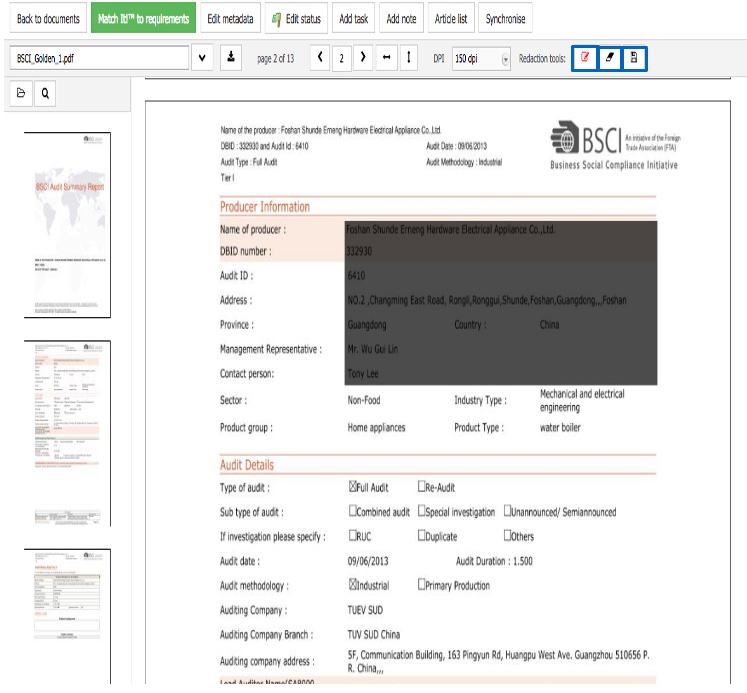
Using the redaction tool
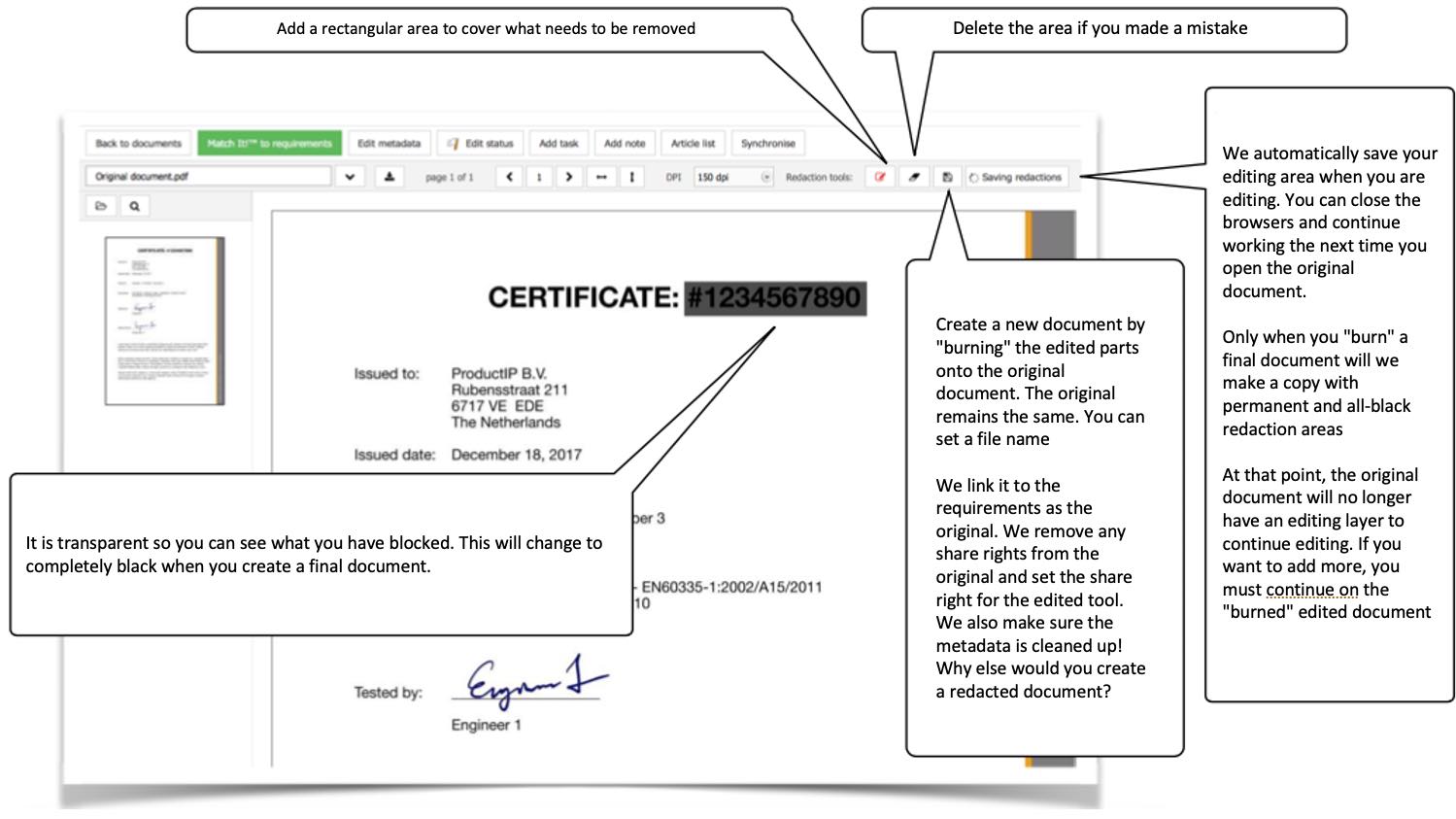
With the built-in Redaction Tool in the document viewer, you can hide sensitive content before sharing:
- Open the document in the viewer.
- Select the Edit (redaction) option.
- Highlight the information you want to hide.
- Save your edited copy.
- ProductIP automatically adds a watermark to the redacted version to indicate that the original is securely stored.
This feature helps you share documents safely while maintaining transparency and trust with your business partners.
Tips and best practices
- Upload documents as soon as they become available to keep your Technical File up to date.
- Use clear, consistent document names for easier searching.
- Add categories and notes to simplify navigation and review.
- Always verify that redacted documents no longer contain sensitive data before sharing.
Troubleshooting
- Can’t upload a file?
Check that the file type and size meet ProductIP’s requirements. - Document not appearing after upload?
Refresh the page or verify that the upload completed successfully. - Redaction tool not working?
Try reloading the viewer. - Shared document still shows sensitive info?
Double-check your edits and reapply redactions before sharing.
Still having issues? Contact ProductIP via helpdesk@productip.com.
FAQ
- Can I upload multiple documents at once?
Yes, you can select and upload multiple files in one go. - Can I replace a document after uploading it?
Yes, simply upload a new version under the same name or update the metadata to reflect the change. - Is redaction permanent?
Yes, once saved, redacted content cannot be recovered from the shared version. The original remains securely stored in ProductIP.
Was this article helpful?
That’s Great!
Thank you for your feedback
Sorry! We couldn't be helpful
Thank you for your feedback
Feedback sent
We appreciate your effort and will try to fix the article