Transitional requirements occur when multiple versions of the same requirement apply to your product during a transition period. This happens when a new version has become valid, while one or more older versions have not yet been withdrawn. Managing transitional requirements helps you keep your technical file accurate and ensures you work with the correct requirement version.
Feature access
This feature is available for all plans.
Before you begin
- The transitional requirements banner only appears when multiple versions of the same requirement are present in your requirements list.
- Your technical file must be in Draft status to make changes to requirements.
Video instructions
A short step-by-step guide will follow soon!
Steps
1. Open your technical file and go to the Requirements tab.
2. Click on Choose requirements in the orange banner or click on the Requirement transitions button.
A window pops up that shows the multiple requirements.
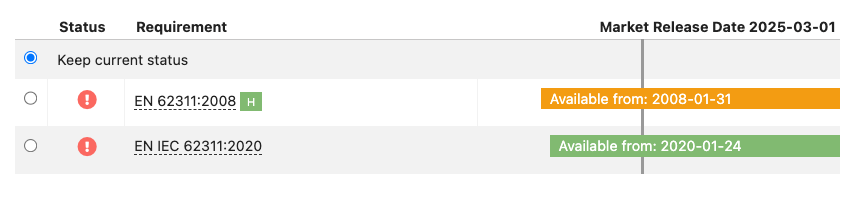
3. Review each row and select the requirement version you want to keep active.
4. Click Save.
ProductIP automatically sets the non-selected requirement version to Excluded and adds a note explaining the change.
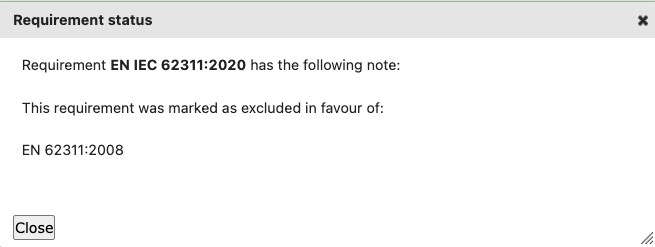
If you select Keep current status, the orange banner remains visible so you can review the transition again later.
Tips and best practices
- Collect and link your supporting documents before managing transitional requirements. This makes it easier to identify which requirement versions are referenced in your test reports and other evidence.
- Look for the green check mark in the Status column to identify requirements that have linked documentation.

- Managing transitional requirements overwrites existing notes for the affected requirements. Complete the transition process before manually adding exclusion notes.
- Review your requirements list regularly to stay up to date with regulation and standard updates.
- If a red banner appears, click the provided link to update your requirements list. Requirement list updates are free of charge.

Troubleshooting
- No orange banner is visible
There are no transitional requirements in your requirements list or the transitional requirements have already been managed by you or another user. To review or change a previous selection, click Requirement transitions.
- I cannot edit the requirements
Check that your technical file is in Draft status. Requirements cannot be updated when the technical file is locked or in a non-editable status.
Still having issues? Contact ProductIP via helpdesk@productip.com.
FAQ
- Can I change the status manually?
Yes, you can update requirement statuses individually or in bulk. See the related article: Manage the requirements list
- What if a requirement does not apply to my product?
Mark it as Excluded (Yellow) and include a short explanation in the notes section.
Was this article helpful?
That’s Great!
Thank you for your feedback
Sorry! We couldn't be helpful
Thank you for your feedback
Feedback sent
We appreciate your effort and will try to fix the article