Managing your requirement list in ProductIP ensures that your technical file demonstrates product compliance effectively. Proper use of status indicators and the buttons related to the requirements helps tracking progress, linking evidence, and ensuring all applicable standards are fulfilled.
Feature access
All ProductIP users with access to a technical file can view and manage requirements.
Professional and Enterprise customers have additional options to add company specific requirements to the database. Contact sales@productip.com to gain access to additional features.
Before you begin
- Ensure you have entered the correct product data, as this determines which requirements apply to the product and what documents are needed.
- Ensure your technical file is set to Draft, as closed technical files show less functionalities.
Steps
Located at the top of the requirement list

Located at the bottom of the requirement list
See below the description of each button.
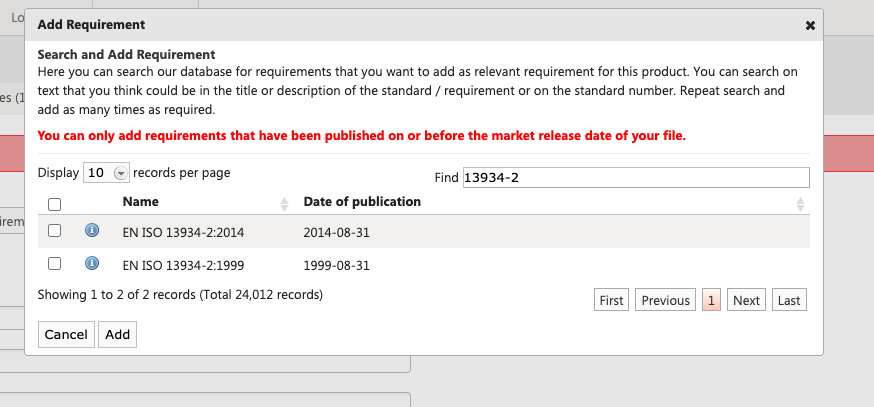
1. Add requirements: you can add one or more requirements that apply to the product.
- Click Add requirements.
- Select the requirement(s) from the list or use the Find field to search for the requirement.
- Press Add to include it in the requirement list.
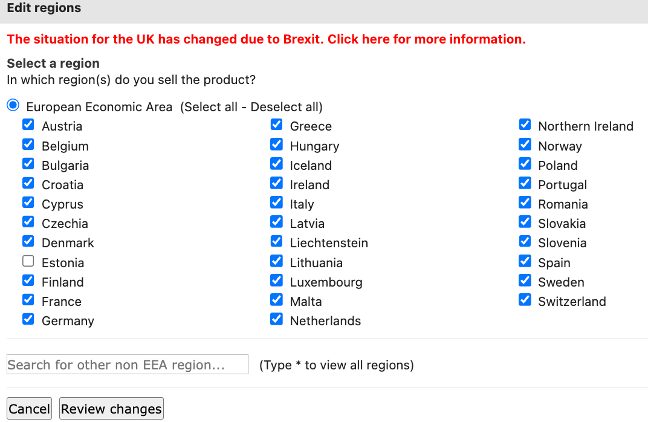
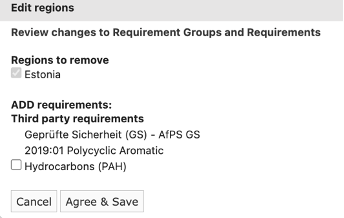
2. Edit regions: you can add or remove one or more regions that apply to your product.
- Click Edit regions.
- Select or deselect a region.
- Click Review changes.
- Click Agree & Save.
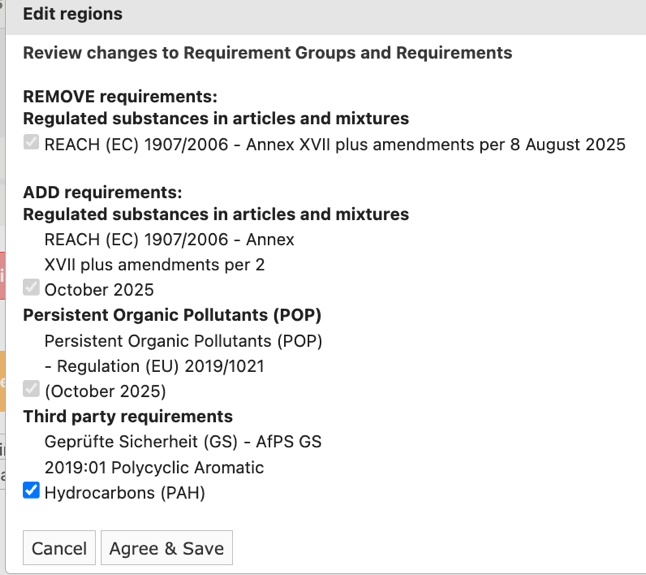
Remove requirements: you can also remove requirements from your requirement list, but only those that you have added manually.
- Click Edit regions.
- Do not change your regions but click Review changes.
- Select the requirements you want to remove.
- Click Agree and Save.
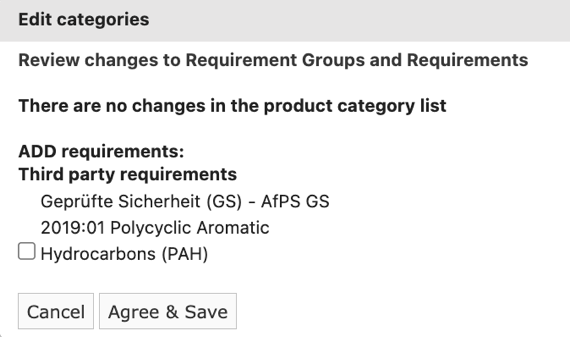
3. Edit Categories: you can change the product category that applies to your product.
- Click Edit Categories.
- Go through Q&A and click agree and save.
Refer to Select a product category.
4. Report incorrect/missing requirements
Refer to Report incorrect and /or missing requirements.
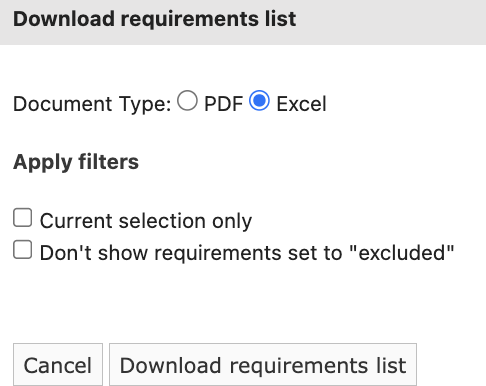
5. Download requirements list: you can export the requirement list based on your selection using the filters for status, group and category.
- Click Download requirement list.
- Select Document Type (PDF or Excel).
- Choose the applicable filters.
- Click Download requirement list.
6. EU Declaration of Conformity
Refer to Create and sign the EU Declaration of Conformity.
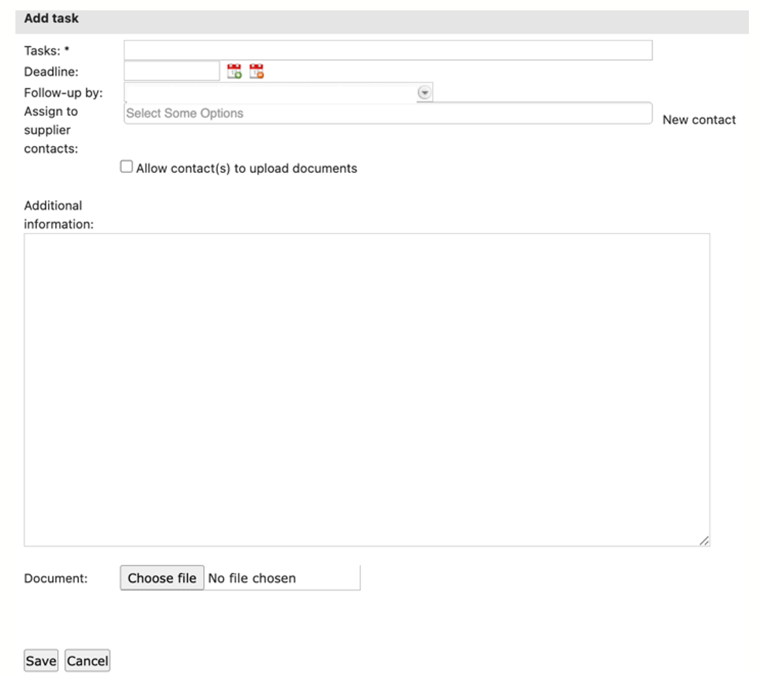
7. Add task: You can use this button to assign tasks, such as requesting documents, to your colleagues or suppliers.
1. Click Add task.
2. Fill out the fields. Fields marked with * are mandatory.
3. If the assignee needs to upload document, select the checkbox "Allow contact(s) to upload documents".
4. Click Save. The task will be visible in the Timeline tab.
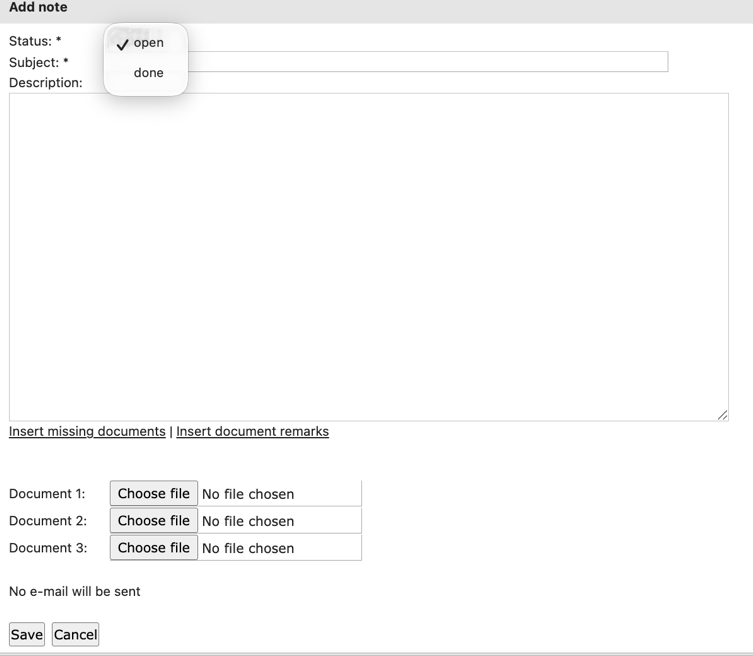
8. Add note: you can use this button to create internal notes related to the requirements.
- Click Add note.
- Fill out the fields. Fields marked with * are mandatory.
- Enter a Description and Insert missing documents. If there are remarks added to the documents, you can Insert document remarks here as well.
- Upload documents (optional).
- Click Save. The note will be visible in the Timeline tab.
9. Requirement transitions
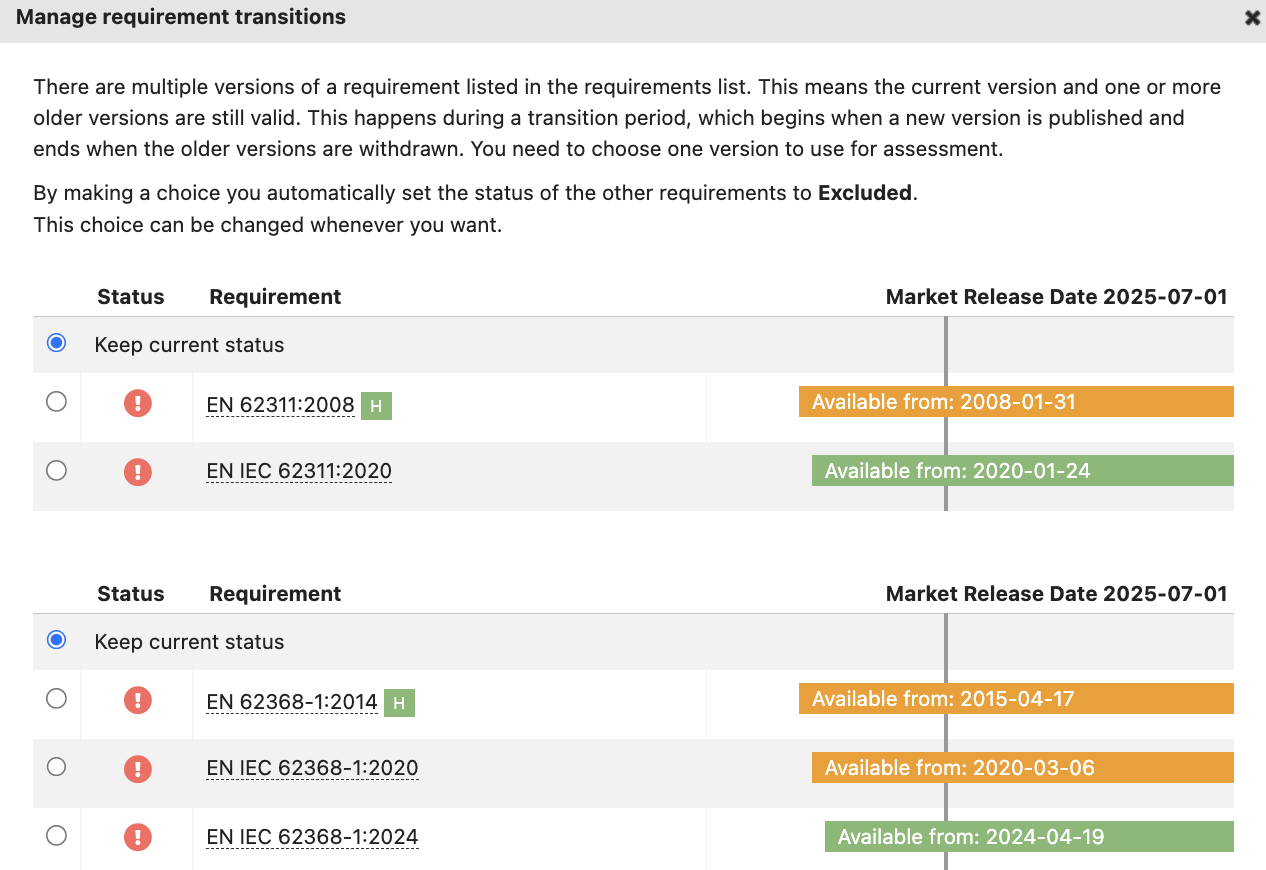
There are multiple versions of a requirement listed in the requirements list. This means the current version and one or more older versions are still valid. This happens during a transition period, which begins when a new version is published and ends when the older versions are withdrawn. You need to choose one version to use for assessment.
By making a choice you automatically set the status of the other requirements to Excluded. This choice can be changed whenever you want.
It is important to select the applicable version before you generate the EU/UK DoC. Otherwise all versions will appear on the DoC. Even the version(s) for which no assessment evidence is available. Then your DoC is wrong.
10. Select all / Deselect all: You can select and deselect all requirements in one go to perform actions in batch.
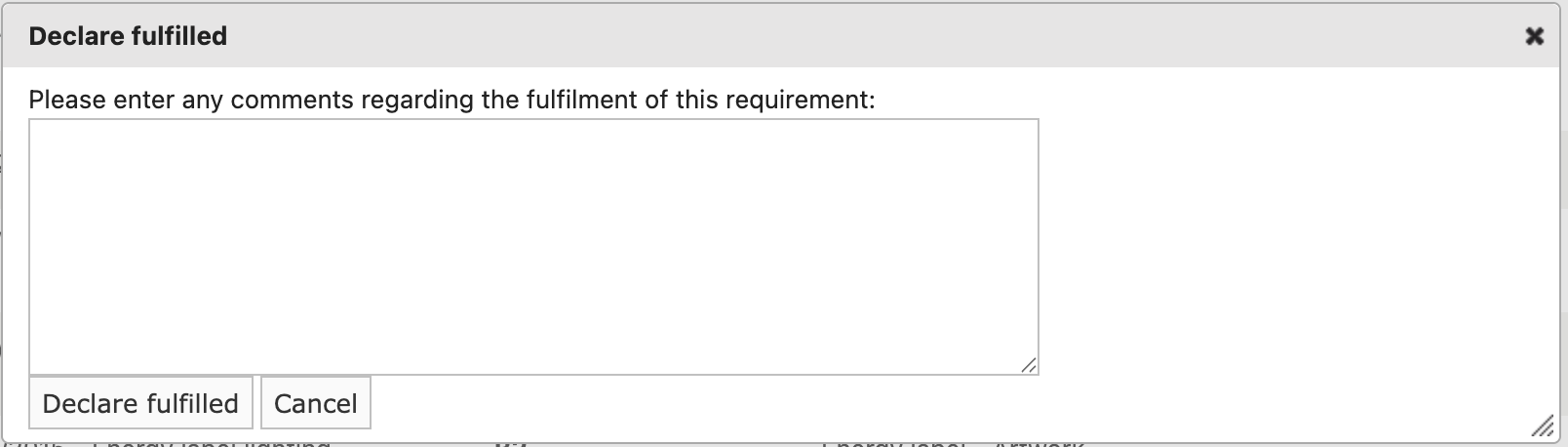
11. Declare fulfilled: You can select multiple requirements in one go and set them to fulfilled.
It is recommended not to perform this action when there is no related document linked to the requirement.
You can add a comment which is shown as a memo icon in front of the requirement for future reference.

When you hover over the note icon the message is shown.
The status icon will turn green.
12. Set requirements to Excluded: if a requirement does not have to be fulfilled in your opinion. You can set it to excluded. Always add a note with the reason for excluding the requirements. Documents linked to the requirements will be unlinked. The status icon will turn yellow and it will be excluded from the risk profile.
13. Mark requirements as Unfinished: if you have incorrectly set requirements to fulfilled or partially fulfilled you can reset them with marking them as unfinished. The linked documents will stay linked. The status icon will turn red.
14. Link to documents
Refer to Link your documents in the requirements tab.
Tips and best practices
- Regularly update your requirement list whenever regulations or product specifications change.
If a red banner appears, click the link provided to update the requirement list. The update is free of charge.
- If an orange banner appears, it means that multiple versions of a requirement apply to your product during a transition period. You need to select one version for assessment by clicking “Choose requirements” in the banner or the “Requirement transitions” button.

Troubleshooting
- Missing buttons in the top screen?
Make sure the technical file is set to Draft, if the technical file is Closed some features disappear. Once you set the technical file to Draft they re-appear. - Requirement not appearing after adding?
Refresh the page or ensure the requirement was properly added from the database. - Status bar shows red (unfulfilled) even after completing documents?
Ensure the right documents have been uploaded and linked. - Requirement not turning green?
Check if the linked document fully covers the applicable requirement.
- Missing requirements?
Check if the correct product category, market release date and regions were selected. If so, add the requirement following the related article Managing the requirement list.
Stil having issues? Contact ProductIP via helpdesk@productip.com for additional support.
FAQ
- Can I add custom requirements?
Yes, Professional and Enterprise customers can add company specific requirements to the database.
- Can multiple users manage the requirement list?
Yes, all users with access to the technical files can contribute, depending on their permissions
Related articles
Report incorrect and/or missing requirements
Create and sign the EU Declaration of Conformity (DoC)
Link your documents to the requirements
Was this article helpful?
That’s Great!
Thank you for your feedback
Sorry! We couldn't be helpful
Thank you for your feedback
Feedback sent
We appreciate your effort and will try to fix the article