Managing your documents ensures that compliance proof is easy to find and use. We offer options to keep your documents tab well-organised.
Feature access
Available to all ProductIP users with Edit or Manage permissions for technical files.
Before you begin
Upload documents under the Documents tab.
Video instructions
A short step-by-step guide will follow soon!
Steps
Located at the top of the Documents tab:

See below a description of each button.
- Request documents: To send a document request.
- Upload documents: To upload your documents.
- Paste from clipboard: If you have more then one technical file and need to upload the same document to multiple technical files, it is possible to copy documents from another technical file. Click this button to select the copied documents that you want to add to this technical file.
- Add tak: When you are working on managing your documents and want to create a task for a colleague or a supplier to upload the document. Tasks are visible in the Timeline tab.
- Add note: If there is something you need to remember or want to highlight for a colleague about the documents and don't want to add it as a document remark. Click with button to make a (sticky) note. Notes are visible in the TImeline tab.
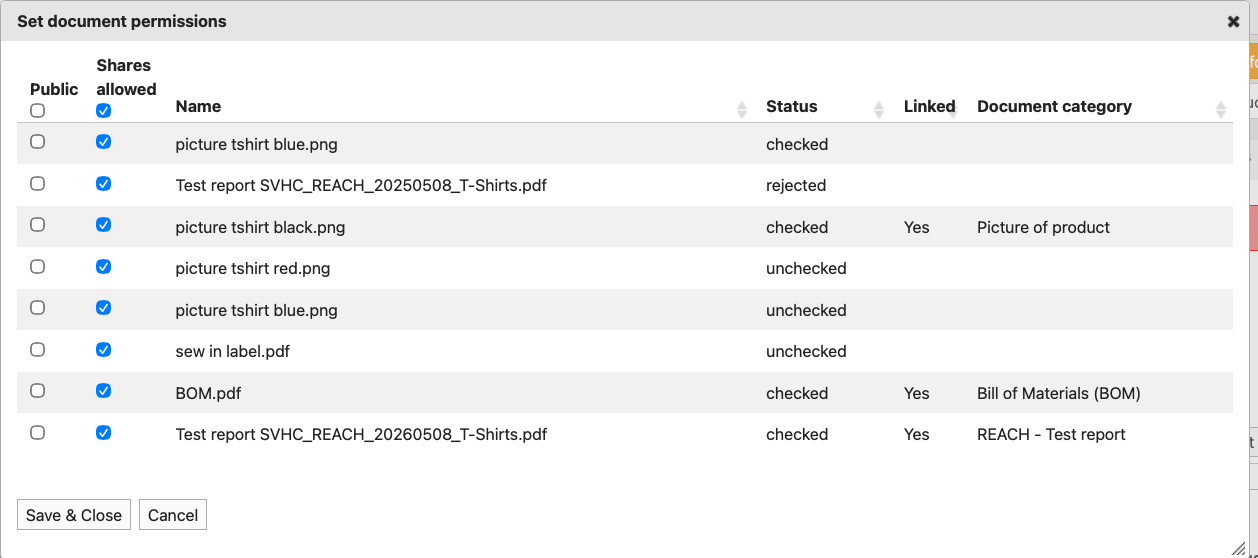
- Set document permissions: You can set your documents to Public, this makes them visible in the Digital Product Passport. Or you can unselect documents to ensure they are not shared with your customer if you have to share your technical file with them.
The documents are displayed in two groups: Collected documents and Missing documents.
Both menu's can be collapsed and expanded by clicking the description.
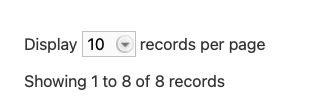
The platform displays 10 records per page automatically (to shorten loading time). You can adjust this to up to 100. That way you are not missing documents that are on the second page.
Collected documents:
This section displays the already collected documents for this technical file.
Located in the second row on the right
Click Show all, Show linked or Show unlinked to see the documents that are linked to requirements or that are yet to be linked.
Click Select columns to adjust your view by selecting the columns you wish to see. Click and hold the columns to move them around and create the best view for you.
Located at the bottom are the batch functionalities

- Copy to clipboard: Select one or more uploaded document to the clipboard to paste them in a different technical file (see Paste from clipboard above).
- Download as zipfile: Select multiple documents to download them to your computer.
- Set document status: Set multiple documents to checked, pending or rejected in one go.
- Set documents categories: Add or remove document categories for multiple documents. This can be helpful for pictures of the product or MSDS in all languages.
- Delete: Delete multiple documents in one go.
These options are also available per document in the last column by clicking on the related icons.
Missing documents:
This section displays the documents that are missing. The documents status (missing/requested/unlinked) and risk (high/medium/low) are displayed.
Click Edit on the right behind the document and tick the box to to set the document to not available. Select the responsible party and add a remark.
This list is related to the requirements in the Requirements tab. You can also see the risk categories.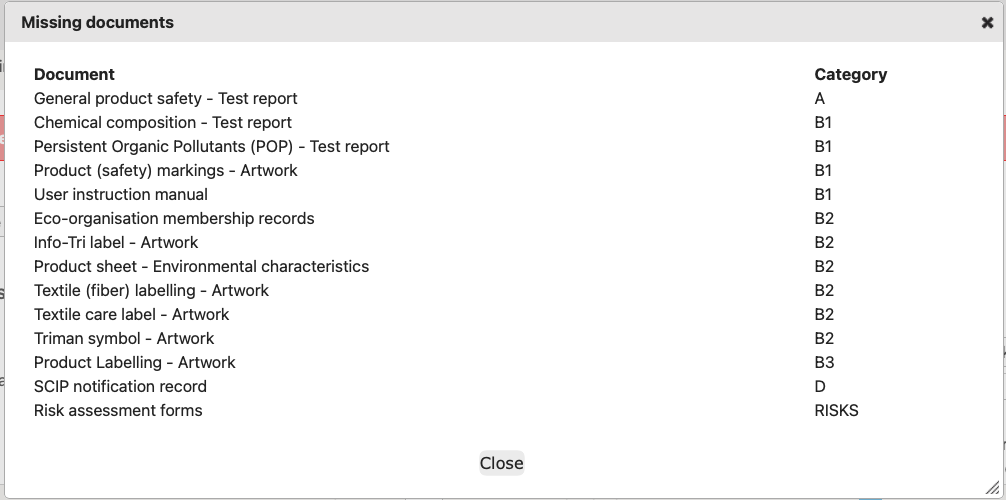
Tips and best practices
- We recommend to show the following columns at a minimum: Name, Uploaded by, Linked, Upload date, Status, Remark, Document category
- When you set an expiry date in the meta data of a document, the text turns red after that date has passed.
Troubleshooting
- Can't find the related requirement in the list?
Check in the requirement list tab if the related requirement is set to excluded, if the requirement is not in your requirement list, check if you have selected the correct product category and if the Q&A was answered correctly.
Still having issues? Contact ProductIP via helpdesk@productip.com.
Related articles
Use metadata to link a document to the correct requirement
Activate Digital Product Passport
Was this article helpful?
That’s Great!
Thank you for your feedback
Sorry! We couldn't be helpful
Thank you for your feedback
Feedback sent
We appreciate your effort and will try to fix the article