Asking your supplier to create and share a complete technical file with you, lightens the workload on your side. However, you still need to review the technical file yourself to see if it is up to your standards.
Feature access
This feature is available for Professional and Enterprise customers. Essential and Advanced customers don’t have access to the technical file request functionality.
Before you begin
- Ensure you have access to the technical file request functionality. Your subscription is visible in the top right corner of your screen in the platform.
- Ensure you have sent out a technical file request and your supplier has followed up with creating and sharing the complete technical file. Otherwise see our training resource Send a technical file request.
- Ensure you have a matching pre-draft technical file in your Technical file overview.
Video instructions
A short step-by-step guide will follow soon!
Steps
- Go to the Requests tab.
- Go to the Pending view & clone tab.
- Click on the Name to open the unchecked technical file.
- Go to the Documents tab in the technical file.
- Click on the Name to open the document.
- Review the documents based on:
- Is this information related to your product? Check the article number and/or product picture. Use the Article List button to verify.
- In case of a test report: Who performed the test, when was the test performed and what are the results? Is the issuer accredited to carry out the testing?
- In case of a statement: Is the information complete and did the correct party sign the document?
- Are there any inconsistencies in the document? Examples could be inconsistent page numbers.
- Is the document linked to the correct requirement? > Use the MatchIt! Button or Fulfilled requirements button to check this.
7. If the document meets the requirements, click the Set review status button and change to Checked.
8. If the document does not meet the requirements, click the Set review status button and change to Pending or Rejected.
9. Check the Requirements tab if all the expected requirements are fulfilled.
If the technical file meets your expectations, select Accept & Clone in the top bar.
- You have the option to merge the supplier's technical file with the Pre-Draft Technical file from which you sent the request to the supplier. It will mention if there is a difference between the pre-draft technical file you sent out and the shared technical file you are accepting.
- If all is OK, click Accept & Clone.
If the technical file does not meet your expectations, there are 3 options to communicate this to the sender.
Option 1: Create issues and keep the shared technical file open
- See our resource Use document remark or issue and the differences
- The sender of the technical file can see your created issues immediately.
- (Optional) Assign the issue and deselect the box Don't send an email notification to notify this person about this issue.
- (Optional) In the Pending view and Clone tab you van adjust the Review phase.
- Click on the Update review button.
 .
. - Select "On hold".
- (Optional) Add a note.
- Click Update.
- Click on the Update review button.
Option 2: Create issues and decline the shared technical file
- See our resource Use document remark or issue and the differences
- The sender of the technical file can see your created issues immediately.
- Once you have created all your issues, decline the technical file to notify the sender about the open issues.
- Select Decline in the top bar.
- Write a message pointing out that you have created issues which need to be resolved before resharing.
- This message will be sent by the platform to the mailbox of your supplier.
- Your supplier can find the declined technical file and issues in their platform under the Shares tab.
- The technical file is no longer accessible to you until the sender reshares the technical file.
- In the Declined shared files tab you can see the technical file, but don't have access.
Option 3: Decline the shared technical file and share the needed improvements via one text message
- Select Decline in the top bar.
- Select Decline in the top bar.
- Write a message explaining the topics that need to be resolved before resharing.
- This message will be sent by the platform to the mailbox of your supplier.
- Your supplier can find the declined technical file and issues in their platform under the Shares tab.
- The technical file is no longer accessible to you until the sender reshares the technical file.
- In the Declined shared files tab you can see the technical file, but don't have access.
Tips and best practices
- After the technical file has been accepted, it is no longer displayed under the Requests tab. You can find the technical file in your Technical file overview.
- Issues created after accepting the shared technical file are not visible for your the sender. You can create a document request to request additional documents or create a task to ask further questions.
- Communication between you and the sender is also visible for your colleagues who have access to Technical file request. On the sender's side colleagues in the same company account can also view communication and work on improving the technical file.
- You can adjust the workflow status without resetting the status of the technical file from "Closed" to "Draft" by selecting Set workflow Status from the Choose Action dropdown menu and clicking Execute.
- You can set the review status without opening documents by clicking the flag icon under the Documents tab.
- You can also create issues directly under the Issues tab.
- You can create issues during the review without notifying your supplier or colleague immediately. The issues can then be communicated in a single batch when you decline the technical file. See Manage your open issues
- Open the Documents, Requirements and Issues tab in separate windows for easy access. For example, you might want to quickly check if another document was linked to the same requirement as the document you are reviewing, or you would like to create an issue related to the requirement instead of a document.
- When creating an issue related to a requirement, add the requirement name for easy reference.
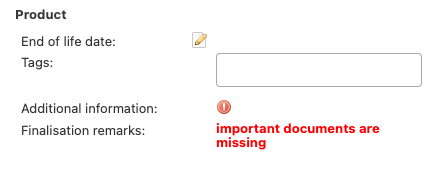
- When accepting the shared technical file you have the option to select Mark clone as incomplete. Use this when the technical file is not up to your standard, but you expect no further improvements on the technical file from the sender. The workflow status of the technical file will automatically be set to "Not Compliant". The text written in the text box will be shown under the Product tab of the technical file in "Finalisation remarks".
Troubleshooting
- Can't find the shared technical file in the Requests tab?
The technical file has already been accepted or declined.
- Accepted a technical file and still need additional documents?
Once a technical file is accepted, newly created issues are not visible to the sender.
- Create a Document Request to request additional documents.
- Create a Task if you have follow-up questions for the supplier.
- Can’t change a review status?
Refresh your page and try again.
FAQ
- My supplier says I have accepted their technical file, but I still have the technical file as pre-draft in my overview.
It could be that you accepted the technical file without merging it with your pre-draft file. Check if you have a technical file with the suppliers identifier in your overview and merge this with your pre-draft file.
- What is the difference between Pending and Rejected document status?
Both indicate that the document does not meet the your requirements.
- Pending is typically used when additional information or corrections are expected.
- Rejected is used when the document is not acceptable in its current form.
- When should I choose Accept & Clone?
Use Accept & Clone when:
- All required documents have been reviewed.
- Documents meet your quality requirements.
- Expected requirements are fulfilled.
- You are ready to create your own copy of the technical file.
- The technical file is not complete, but you further improvements are not accepted.
- When should I choose Archive?
Use Archive when:
- You don't expect the sender to improve the technical file and you don't wish to accept the technical file in this state.
- You received the same technical file multiple times.
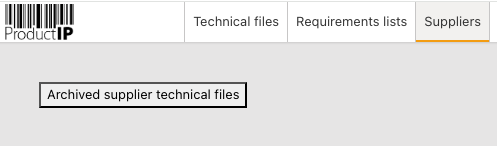
Archiving will move this shared technical file to Archived supplier technical files under the Suppliers tab. Here you still have to option to Decline or Accept & Clone the technical file.
- What does "Mark Clone as Incomplete" do?
Selecting this option automatically sets the workflow status to Not Compliant and stores your remarks in "Finalisation Remarks" under the Product tab.
Related articles
Was this article helpful?
That’s Great!
Thank you for your feedback
Sorry! We couldn't be helpful
Thank you for your feedback
Feedback sent
We appreciate your effort and will try to fix the article